Left knob
Retune speed
How quickly a note is pulled into tune once it starts. Lower is faster and more obvious. Higher lets scoops and slides through before the note settles. At 0 ms the correction is immediate.
Start at35 ms
Available for Windows · 30-day free trial
Vocal pitch correction for Windows. Choose a key and scale, then adjust the correction strength and speed. Use slower settings for subtle correction or Hard tune for a pronounced tuning effect.
€9.99one-time
Try free for 30 daysOr get all eighteen plugins with Spark Complete for €27.99. Your free trial starts on activation. No card, no automatic charge.
Suggested settings for lead vocals, hard tuning and harmony tracks. Adjust them to suit your recording.
Set the song’s key and scale, turn Hard tune down to 0% and use a slower Retune speed. This allows more of the singer’s note transitions and vibrato through while correcting held notes.
Starting point
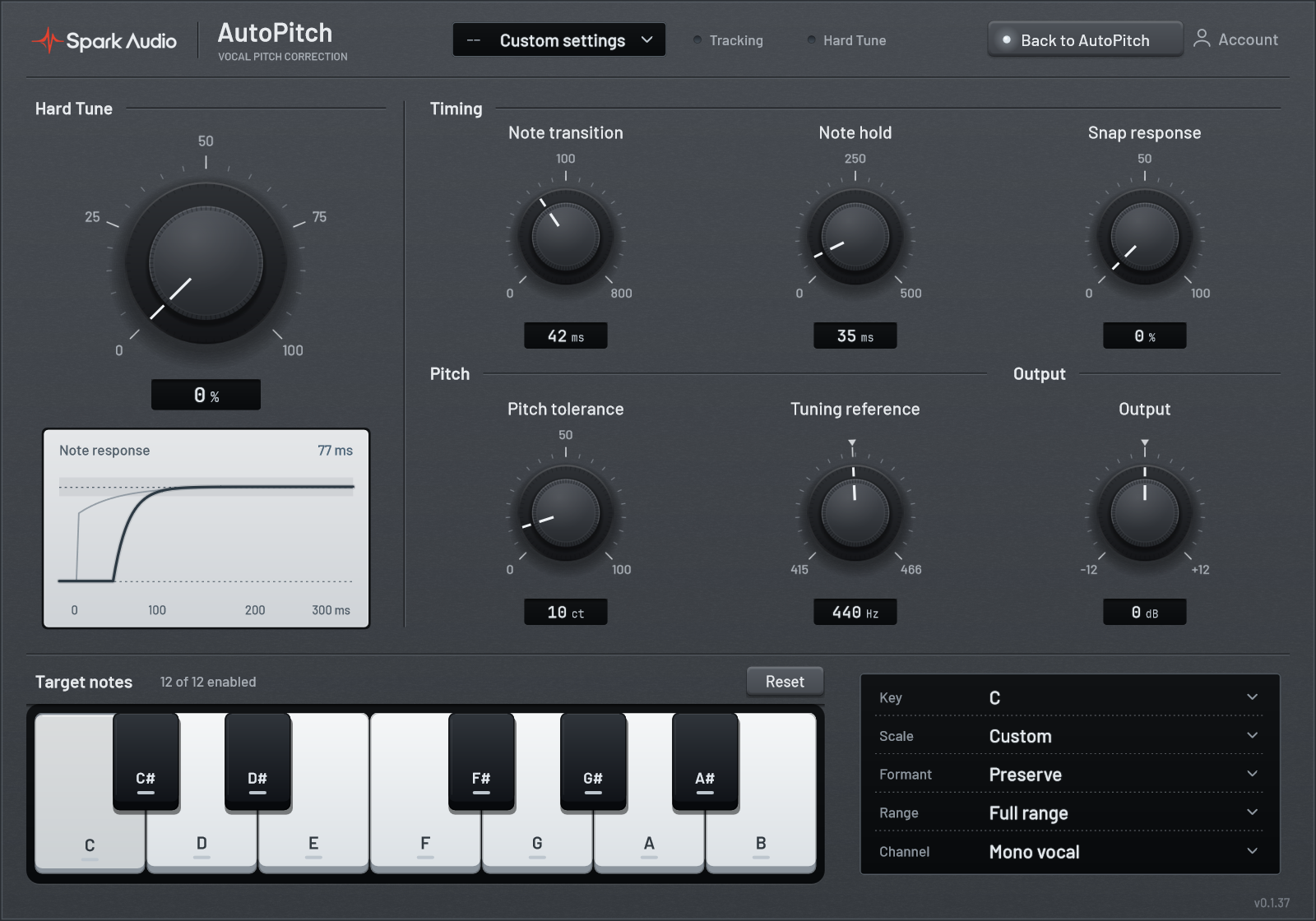
Set Hard tune and Correction to 100% for abrupt note changes. Hard tune overrides the smoothing controls; Retune speed at 0 ms alone does not produce the same effect. New instances start with Hard tune at 0%; raise it for this effect.
Starting point
Use an instance of AutoPitch on each harmony track. Disable unwanted notes on the Target notes keyboard to create a Custom scale for that part. In the new interface, the keyboard is available on both pages.
Starting point
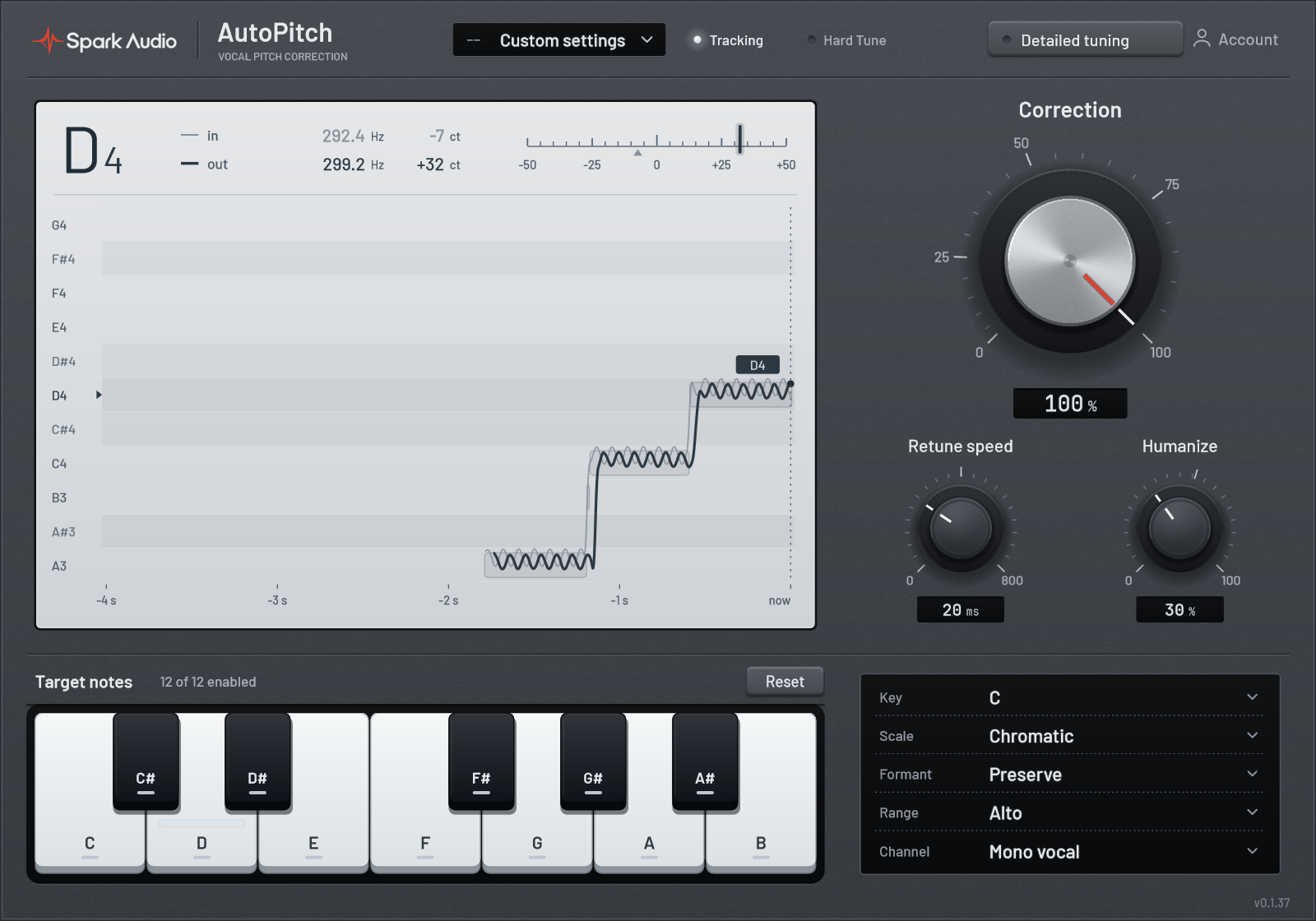
The new interface puts a live Pitch monitor beside the three main knobs. Key, Scale, Formants, Vocal range and Channel mode menus stay available on both pages, together with the Target notes keyboard. For a natural lead vocal, keep Hard tune at its 0% default in Detailed tuning; at 100%, it overrides Retune speed and Humanize.
Left knob
How quickly a note is pulled into tune once it starts. Lower is faster and more obvious. Higher lets scoops and slides through before the note settles. At 0 ms the correction is immediate.
Start at35 ms
Centre knob
How firmly each note is pulled onto its target. It’s the strength of the correction, not a wet/dry blend, so turning it down gives a lighter touch rather than a doubled, phasey sound.
Start at85%
Right knob
Lets the singer’s own movement around a note, like vibrato, come through while the centre of the note is still corrected. It doesn’t add any wobble of its own.
Start at40%
First menu
The root note of the song. Set it with Scale so AutoPitch only aims for notes that belong, and a flat note lands on the right pitch instead of the semitone below it.
Start atThe song’s key
Second menu
Chromatic allows all twelve notes, which is the safe choice until you know the key. Clicking notes off on the Target notes keyboard turns it into a Custom scale.
Start atThe song’s scale
Third menu
Preserve or Shift: two ways of handling the character of the voice as the pitch moves, each on its own engine. The difference, explained.
Start atPreserve
Open Detailed tuning at the top right for seven additional controls, including Hard tune and Output. In the new interface, the five menus and Target notes keyboard stay in place. Choose Back to AutoPitch to return to the monitor and main knobs.
Formants are resonances that contribute to the tone of a voice. The Formants menu controls whether they stay in place or move with the pitch. Compare both settings on your recording.
Spark formant-preserving waveform engine
Keeps the formants in place while the pitch is corrected. Version 0.1.38 improves waveform continuity as the voice moves between notes and pauses. Preserve remains the default for new instances; existing projects retain their saved Formants setting.
Spark waveform shifter
Moves the formants with the pitch and aligns neighbouring waveform cycles as notes change. Select Shift when you want the voice’s character to move with the tuning.
Switching Formants settings. Both engines stay ready, so changing either way uses a 20 ms crossfade. Both settings report the same latency to your DAW.
To correct a note, AutoPitch has to hear a little of it first. Version 0.1.38 delays the audio by 126 ms at 48 kHz, or 126.53 ms at 44.1 kHz. That’s the same with either Formants setting.
AutoPitch reports that delay to your DAW, which compensates on playback so the tuned vocal stays lined up with the rest of the mix. Playback compensation does not remove the delay while recording through it: the singer would hear themselves late. Use it on the vocal track when you mix, not in the headphone feed.
The same on every knob, on both pages.
System requirements and plugin details. See support for installation and DAW setup.
Go to supportExplore the eighteen Spark plugins. Each has its own 30-day free trial.
30 days free, starting when you activate AutoPitch in the plugin. One trial per account and device. No card required.
Start free trial