
Left knob
Retune speed
How quickly a note is pulled into tune once it starts. Lower is faster and more obvious. Higher lets scoops and slides through before the note settles. At 0 ms the correction is immediate.
Start at35 ms
Vocal pitch correction for Windows. Choose a key and scale, then adjust the correction strength and speed. Use slower settings for subtle correction or Hard tune for a pronounced tuning effect.
30 days free
Download for Windows30 days free, starting when you activate AutoPitch in the plugin. One trial per account and device. No card required.
Suggested settings for lead vocals, hard tuning and harmony tracks. Adjust them to suit your recording.
Set the song’s key and scale, turn Hard tune down to 0% and use a slower Retune speed. This allows more of the singer’s note transitions and vibrato through while correcting held notes.
Starting point
Set Hard tune and Correction to 100% for abrupt note changes. Hard tune overrides the smoothing controls; Retune speed at 0 ms alone does not produce the same effect. New instances open with these hard-tuning settings.
Starting point
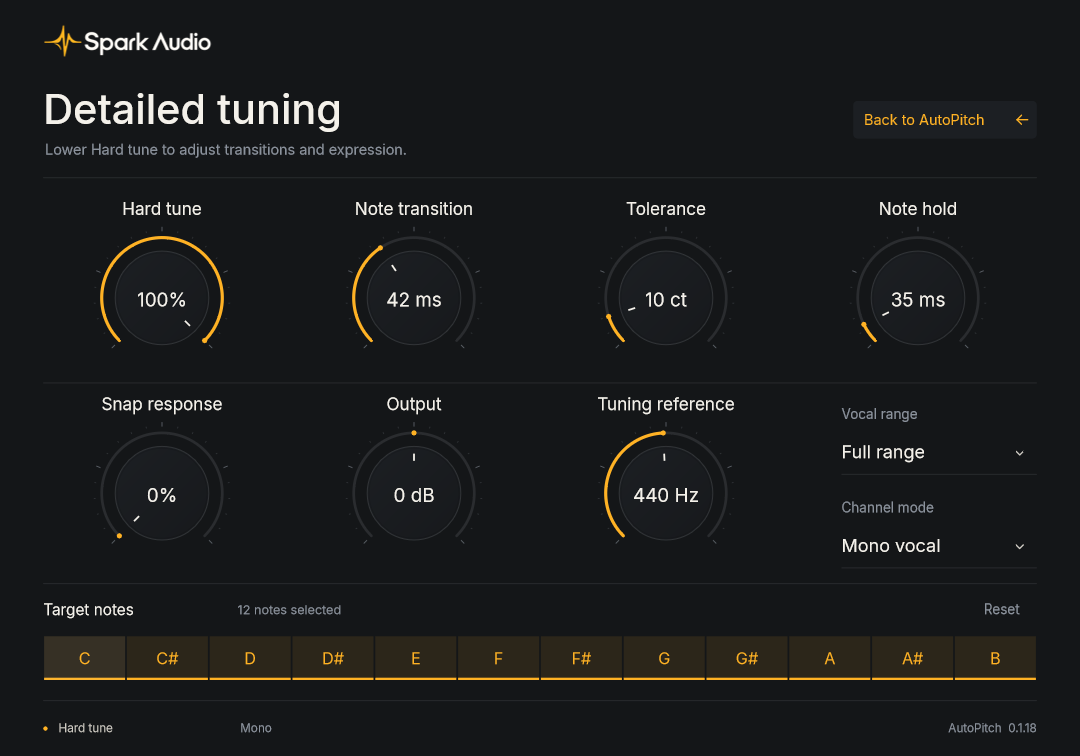
Use an instance of AutoPitch on each harmony track. In Detailed tuning, disable unwanted notes in the Target notes strip. This creates a Custom scale for that part.
Starting point
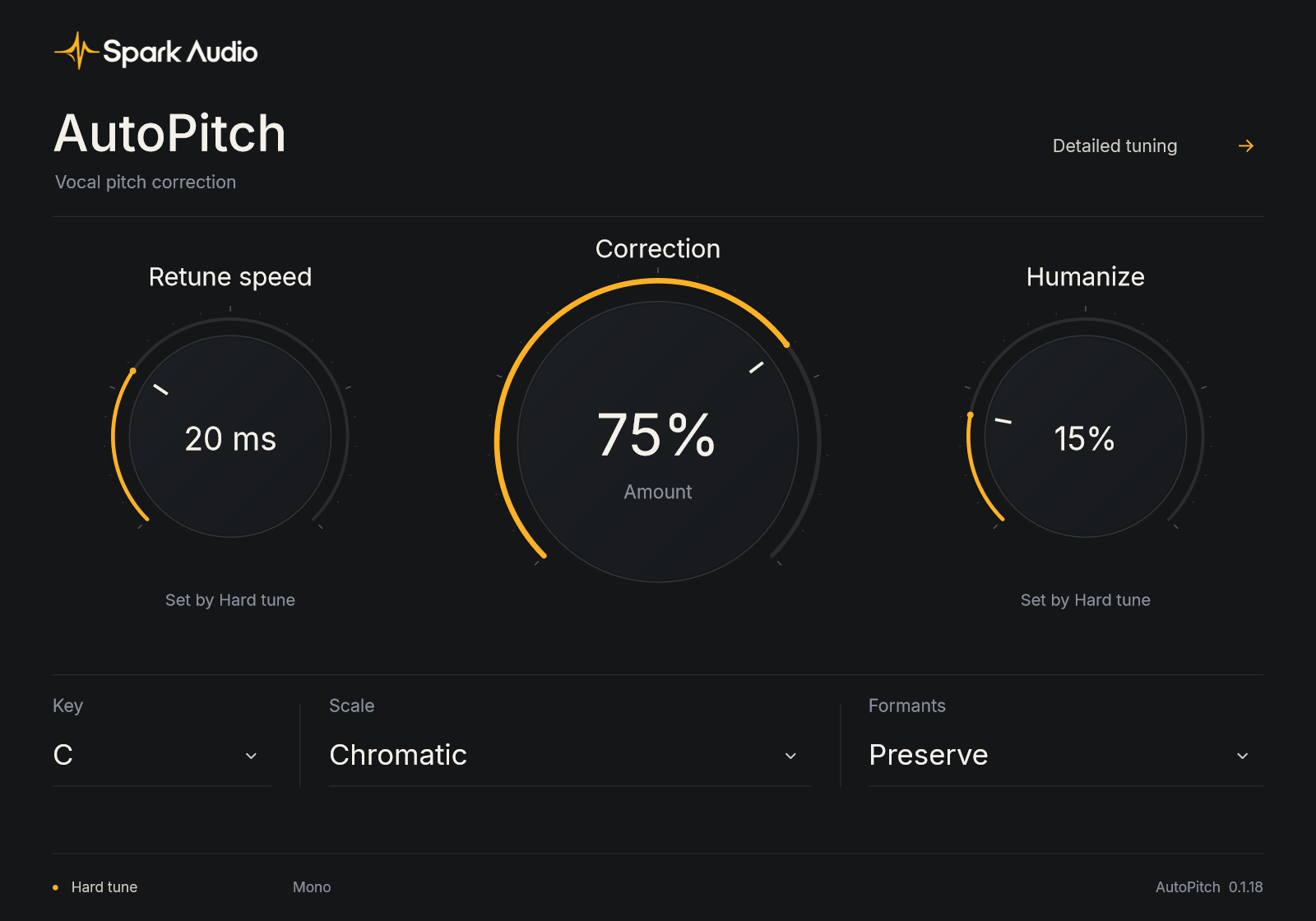
What each knob and menu does to the sound, and where to start for a natural lead vocal. New instances open with Hard tune at 100%, which overrides Retune speed and Humanize (the window says “Set by Hard tune” under both), so set Hard tune to 0% in Detailed tuning first.
Left knob
How quickly a note is pulled into tune once it starts. Lower is faster and more obvious. Higher lets scoops and slides through before the note settles. At 0 ms the correction is immediate.
Start at35 ms
Centre knob
How firmly each note is pulled onto its target. It’s the strength of the correction, not a wet/dry blend, so turning it down gives a lighter touch rather than a doubled, phasey sound.
Start at85%
Right knob
Lets the singer’s own movement around a note, like vibrato, come through while the centre of the note is still corrected. It doesn’t add any wobble of its own.
Start at40%
Left menu
The root note of the song. Set it with Scale so AutoPitch only aims for notes that belong, and a flat note lands on the right pitch instead of the semitone below it.
Start atThe song’s key
Middle menu
Chromatic allows all twelve notes, which is the safe choice until you know the key. Clicking notes off in the Target notes strip in Detailed tuning turns it into a Custom scale.
Start atThe song’s scale
Right menu
Preserve or Shift: two ways of handling the character of the voice as the pitch moves, each on its own engine. The difference, explained.
Start atShift, then try Preserve
Open Detailed tuning at the top right for Hard tune, custom scales and additional controls. Choose Back to AutoPitch to return to the main page.
Formants are resonances that contribute to the tone of a voice. The Formants menu controls whether they stay in place or move with the pitch. Compare both settings on your recording.
Rubber Band engine
Keeps the formants in place while the pitch is corrected. Worth a try when a corrected note starts to sound less like the singer.
Spark waveform shifter
Moves the formants with the pitch and aligns neighbouring waveform cycles as notes change. This is the default setting for new instances.
Switching Formants settings. Changing from Shift to Preserve takes about 110 ms and ends with a short crossfade. Both settings report the same latency to your DAW.
To correct a note, AutoPitch has to hear a little of it first, so it delays the audio by roughly 50 ms or more, depending on sample rate. That’s the same with either Formants setting.
AutoPitch reports that delay to your DAW, which compensates on playback so the tuned vocal stays lined up with the rest of the mix. That can’t help while you’re recording through it: the singer would hear themselves late. Use it on the vocal track when you mix, not in the headphone feed.
The same on every knob, on both pages.
System requirements and plugin details. See support for installation and DAW setup.
Go to supportCompressor, EQ, Delay and Reverb are in development. View their planned features below.
30 days free, starting when you activate AutoPitch in the plugin. One trial per account and device. No card required.
Download for Windows